
 Reeve
Reeve Backups
Supabase storage backup: why your database copy has no files
A Supabase storage backup is a separate job. Database backups keep the list of your files and none of the files, so a restore leaves every upload broken.
In short
- A Supabase storage backup is a separate job from a database backup. Every backup Supabase takes, on every plan, holds the row that describes each uploaded file and none of the files themselves.
- Restore the database on its own and you get a working app in which every avatar, invoice and upload opens to an error, because the file it points at was never in the copy.
- The S3-compatible endpoint is the way to copy the files out. The way back is through Storage itself, which writes the matching row as each file arrives, so the list and the files cannot disagree.
You set up backups for your Lovable or Bolt app, or you pay for the Supabase plan that takes them, and the word did its job: you stopped worrying. Then a restore, or a move to a new project, and the app comes back with a broken image where every profile picture used to be. Every table and every row is there. The pictures are gone, along with every invoice, export and attachment a user ever uploaded.
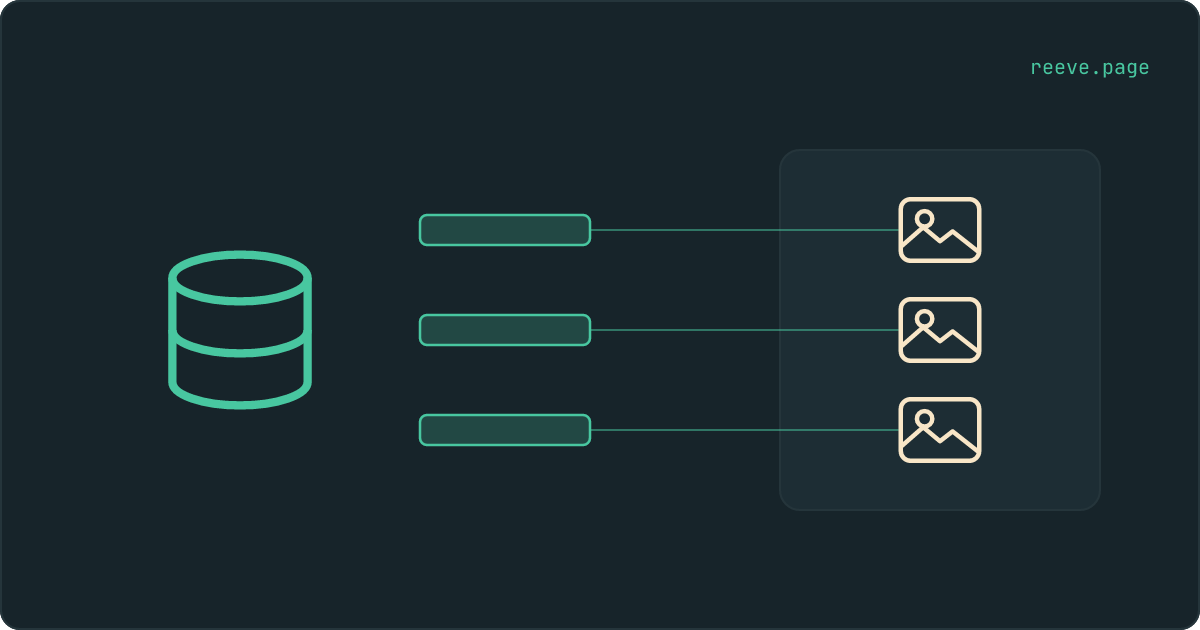
Here is the part the word backup hides: a Supabase storage backup is a separate job, because a database backup holds a row for every file your users uploaded and none of the files. The row is in your database. The file is in Storage, a separate service, and no database copy on any plan reaches into it. This article covers how to take that second copy, and the order the two halves go back in, which is the part that goes wrong even when you have both.
It helps to think of a library. The catalogue is a drawer of cards, one for every book, each saying which shelf the book stands on. The books are on the shelves. A database backup copies the drawer.
Does Supabase back up my storage files?
No, on any plan. Supabase's backups documentation says that backups do not contain files stored via the Storage API, only their database metadata, and point-in-time recovery is a database feature, so the same sentence covers it.
What every backup does contain is the list. Supabase keeps a table called
storage.objects in your Postgres database, with one row per file in every
bucket: which bucket it sits in, its path, who uploaded it, how large it is and
when it arrived. That table is copied along with everything else, which is
exactly why a restored project looks so complete. Every card is in the drawer.
The bytes of each file are somewhere else. They live in object storage, a separate service beside your database, and a tool that copies a database never reads it. The free plan takes no automatic backups at all, so there the question does not even arise; on Pro and above the daily copy has your rows and none of your uploads.
Where Supabase keeps your files
In two places, and a database backup reaches one of them.
When a user uploads an avatar, your app hands the file to Storage. Storage
writes the bytes into object storage under the bucket name and path, and in the
same operation writes a row into storage.objects describing it. Your app then
keeps that path in one of its own tables, say a profiles row with an
avatar_url column, and builds a link from it whenever the picture is needed.
So one uploaded picture is three things: the bytes in object storage, the row
in storage.objects that Storage maintains, and the path in your own table. A
database backup carries the last two. Restore it and your app has every path
and Storage has every row, and the link they build together points at a place
where nothing is.
This is also why the failure is so quiet. Every row agrees with every other row, every count matches, and every check that reads the database passes, including the verification step of most backup tools, because the files were never inside the thing being checked.
What a restore looks like with only half
A project that passes every check and shows a broken image wherever a file should appear.
The restore reports success because it did what it was asked: the tables are back and the row counts match. Open the dashboard and Storage lists every bucket and every file in it, with sizes and dates, because that listing is read from the table the restore put back. Supabase's own guide to restoring a dashboard backup into a new project describes exactly this state: the buckets and file metadata appear, and the objects behind them do not.
How you find out is ordinary. The team page shows a row of broken-image icons where the avatars were. A customer replies to last month's invoice email to say the link opens to an error. Somebody clicks a file in the Storage browser and the download fails. The card says shelf four, third from the left, and shelf four is empty.
Nothing warns you before that moment, because every warning you have is wired to the database. How to restore a Supabase backup walks through the five ways a restore comes up broken, and the files are the row in that table with no fix unless you made a copy of them.
While you have the Storage page open, it is worth knowing what it shows a stranger. Our free scan reads your live app from outside and asks each bucket for its file list using nothing except the key already in your app's code. In August 2026 it got a list back from 792 of the 27,269 apps it could check, a figure from our own research. It reads names and never downloads a file, takes about 20 seconds and needs no account: scan your app.
How do I back up a Supabase storage bucket?
Through the S3-compatible endpoint, with one command that copies a whole bucket into a folder you hold.
Supabase Storage speaks the S3 protocol, which means the ordinary tools built for Amazon's storage work against yours. This is the one step in this article that happens at a command line, and it is worth doing once by hand so that you know what the copy is made of.
- In your Supabase dashboard, open the Storage settings and switch on the S3 protocol. The same page shows the endpoint URL and the region for your project; copy both from there rather than from here.
- On that page, create an S3 access key pair. The secret is shown once, so put it in a password manager before you close the dialog.
- Install the AWS command line, give it the two keys as a profile, and run one sync per bucket:
aws s3 sync s3://avatars ./supabase-files/avatars \
  --endpoint-url https://<project-ref>.storage.supabase.co/storage/v1/s3 \
  --region <region>
Run it again tomorrow and it copies only what changed. rclone does the same
job if you prefer it; on a large bucket, Supabase's
troubleshooting note
says to pass --s3-list-version 2 or the listing can stop early.
Two things about that key. Supabase's S3 authentication page says an S3 access key has full access to every bucket and bypasses Row Level Security, so it belongs on a server or on your own machine and never in your app. And it can write as well as read, because Supabase issues no read-only key for Storage; whoever holds it can delete files as easily as copy them. Treat it the way you would treat your service_role key.
Then put the folder somewhere outside your Supabase account, for the same reason a database copy should live outside it: a suspended project or a lost login takes every copy stored inside that account down with it.
Files first, or rows first?
Database first, then the files, and the files go back through Storage so that Storage writes the rows.
Every upload that passes through Storage, from your app, from the S3 endpoint
or from the Supabase CLI, does two things in one operation: it stores the bytes
and it writes the storage.objects row that describes them. The book is
shelved and the card is written by the same hand. Put the files back that way
and the rows arrive with them, and the two cannot disagree.
The other direction has no such mechanism. Copying storage.objects rows back
with a database tool writes cards and shelves nothing. It also makes the next
step awkward: by default Storage refuses an upload to a path that already has a
row, with an error saying the resource already exists, which Supabase's
uploads guide says you get
past by switching overwrite on. So when the database restore has already
brought the rows back, which is what Supabase's own migration guide has you do,
the file copy that follows has to be allowed to overwrite.
The order, then:
- Restore the database, as that article describes.
- Copy the files back through Storage, with
aws s3 syncrun the other way round (folder first, bucket second) or withsupabase storage cp -r, and overwrite switched on. A bucket that no longer exists has to be created first, with the same name and the same public setting. - Open a file, and then several more.
The cleanest version of this skips replaying storage.objects in the database
step altogether and lets the uploads write every row fresh, so nothing ever
has to be overwritten. That is how our own restore does it. It needs the copy
filtered before it is replayed, which is a step for the tool doing the restore.
How to check you have both
By opening files, because every list you can pull is read from the table.
The dashboard's file browser, a query against storage.objects and the row
count on a backup report all describe the drawer, and after a database-only
restore the drawer is perfect. The only request that touches the shelf is a
request for the file itself.
So after a restore, and after the first copy you take, open files. Pick a handful from each bucket, including the oldest ones, and open them through the app the way a user would. A file that opens came back. A file that errors was never there, whatever the list says.
What to do this week
What to do
- Open Storage in your Supabase dashboard and write down every bucket and roughly what is in it. Anything a user uploaded lives there and in no database backup.
- Switch on the S3 protocol, create an access key, and run one
aws s3 syncper bucket into a folder outside your Supabase account. Keep the secret in a password manager; it can delete as easily as it copies. - Run the sync again on a schedule you will keep, whether that is a calendar reminder or a job on a server.
- Write the restore order somewhere you will find it: database first, then files through Storage with overwrite on.
- Restore once into a throwaway project and open ten files, so the first time you learn whether the copy works is not during an outage.
Where Reeve Care fits
Care copies the files with the database, in the order this article describes, and puts them back the same way.
- The files your users uploaded are copied too, once you connect the Storage buckets of your Supabase app. That is a second key, asked for separately, because the key Supabase issues for Storage can write as well as read, and we would rather ask than fold it in with the database key, which cannot.
- The file copy runs after the database copy has been read back and verified, never beside it, so a restore point never claims files it did not copy. A copy that ran out of time is labelled partial, with the real counts.
- Each restore point records which path held which file. A database put back to Tuesday gets Tuesday's files, and a file that is still in place is left alone.
- Restoring puts the files back through Storage, so every row is written by the upload that carries the file. Nothing that exists today is overwritten or deleted, which means pressing the button in a panic cannot destroy the thing you were trying to save.
- Restoring is a button, and it takes a snapshot of the current state before it starts, so the restore itself has an undo.
Care starts at $49 a month for one app. That is a list price, and the pricing page is sometimes below the figure here and never above it.
How a copy is taken, checked and put back, files included, is drawn step by step on the Supabase backups page.
Before you close this tab, open Storage in your dashboard and count the buckets. Each one is a set of files that no backup Supabase takes will ever contain, and the sync command above is the whole of what it takes to change that. If a bucket also turned out to be listable, what a stranger gets from that list is the next thing to read.
FAQ
Does Supabase back up my storage buckets?
No. Supabase says so on its own backups page: database backups do not contain files stored through the Storage API, only the database rows that describe them. That holds for the daily backups on paid plans and for point-in-time recovery. The free plan takes no automatic backups at all, so there the question does not arise. Your files need a copy of their own on every plan.
Does point-in-time recovery cover Supabase Storage?
No. Point-in-time recovery rewinds the database, and Storage is a separate service that the database only holds paths into. A project rewound to Tuesday points at whatever is in the buckets today, and a file deleted on Wednesday stays deleted after a recovery that worked perfectly.
How do I download every file in a Supabase bucket?
Through the S3-compatible endpoint. Switch on the S3 protocol in the Storage settings of your dashboard, create an access key pair, and point the AWS command line or rclone at the endpoint and region printed on the same page. One sync command copies a whole bucket to a folder you hold. The dashboard downloads one file at a time, which is fine for a logo and hopeless for a bucket.
What is storage.objects?
A table in your Postgres database with one row for every file in every bucket: which bucket it is in, its path, who uploaded it, its size and type, and when it arrived. It is the index. The bytes of the file are not in it, which is why a database backup can list every file you have while containing none of them.
If I restore my database, do my files come back?
No. The restore brings back the storage.objects rows, so the dashboard lists every file and your app renders every link, and each one opens to an error because the file behind it was never in the copy. The files have to be put back separately, through Storage, from a copy you took of them.