
 Reeve
Reeve Backups
Supabase free tier backups: how to make one without a terminal
There are no Supabase free tier backups, so the copy has to come from you. How to make one from the dashboard, and what CSV leaves out.
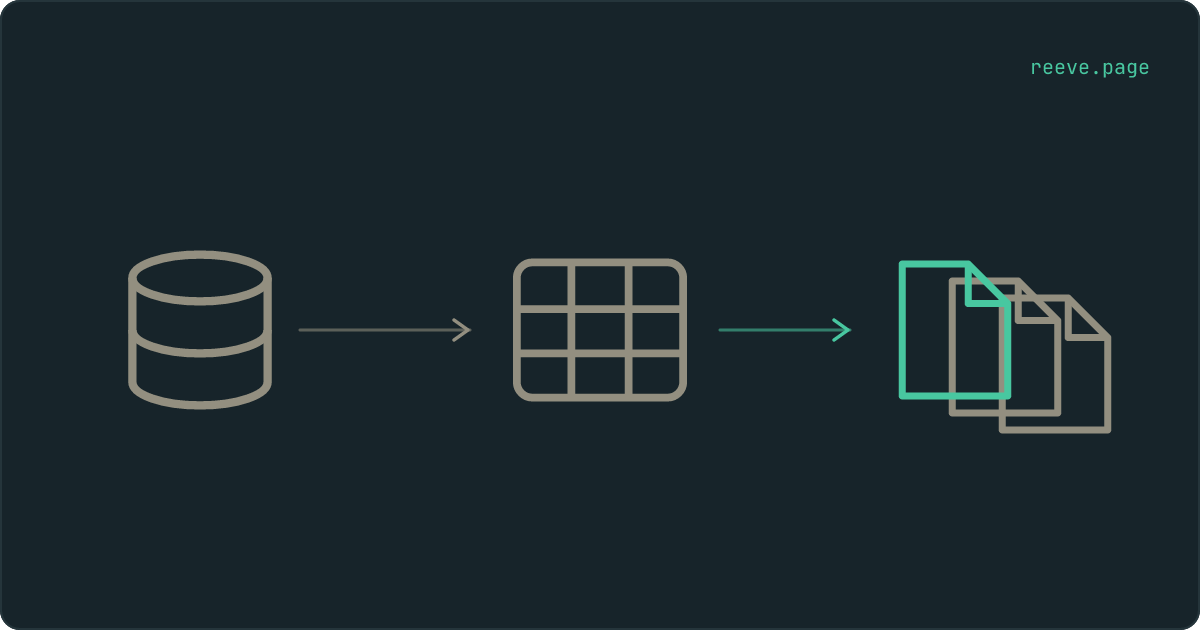
In short
- There are no Supabase free tier backups. Nothing is copied anywhere on a schedule, so the only copy of your data is one you made.
- The dashboard exports a table to CSV in a few clicks. That gets your rows out and leaves the structure behind: relationships, types, policies, logins, files.
- For a copy that can rebuild the project, a desktop database client makes a full dump by pointing and clicking. No terminal involved.
Your project is on the Supabase free tier, and you have opened Database, then Backups, looking for a list of dated copies to restore from. There is nothing there. No dates, no restore button, only a note about upgrading. The page is not broken. There are no Supabase free tier backups to list, because the plan takes none.
Here is where most answers to this go wrong. They hand you a pg_dump command,
which is the correct tool and an instruction you cannot follow: it assumes a
terminal, a Postgres installation and a connection string, and you built this
app in Lovable or Bolt precisely so you would never need any of the three.
You can get your data out of the dashboard instead. One route takes about ten minutes and gives you your rows. The other takes longer and gives you the database.
Does the Supabase free tier include backups?
No. The free plan takes none at all, and there is no setting that switches them on. Automatic daily backups begin on the Pro plan, and point-in-time recovery is a paid add-on above that.
Which plan you are on is the fact everything else here depends on, and it takes two minutes to check. If you are on the free plan, the only copy of your data is one you made. The rest of this article is how to make one today.
The fastest copy: export your tables to CSV
Open the Table Editor, choose a table, and use the export control above the grid. It offers to download every row as a CSV file, and that file arrives in your downloads folder like anything else.
Then do it again for the next table, and the one after that. The export works on one table at a time, which is the part that usually goes unmentioned: you have to know which tables your app has. The list down the left of the Table Editor is that list, and it is worth reading to the bottom before you start.
Ten minutes of clicking gets you a folder of CSV files holding every row your users have made. As a way of not losing your data this afternoon, that is a good use of ten minutes. What you have at the end of it is a copy of the rows, and only the rows.
What the CSV files leave behind
Five things, and not one of them is a row. A CSV holds the contents of a table and nothing about how that table was built, so what you end up with is a list of what was in the room without any of the shelves.
| What stays behind | Why it matters when you put the data back |
|---|---|
| The relationships | A CSV has no idea which table has to be loaded first, so an import either fails or leaves rows pointing at things that are gone |
| The column types | Everything arrives as text until something tells the new database otherwise, and an empty cell and a real null become the same |
| Row Level Security policies | The rules that decide who can read what are not in the file, and a table recreated without them is either shut to everyone or open to everyone |
| Your login accounts | They sit in a separate auth schema, which is why they are not in the Table Editor beside your own tables |
| Everything your users uploaded | Supabase Storage lives outside the database, so no export of any table has ever contained a file |
The last row is the one that surprises people. Your database only ever stored the path to each uploaded file, so a folder of CSVs loaded into a fresh project gives you a table full of links to files that are not there.
This does not make the CSV route worthless. If what you are afraid of is a bad delete on one table, a CSV of that table is the thing you want, and putting a few hundred rows back through the same editor is a job you can do yourself. It is rebuilding the whole project that it cannot do.
While you are looking at your tables: our free scan reads your live site from the outside and tells you which of them answer to a stranger. It takes about 20 seconds and needs no account: scan your app.
A real backup, without opening a terminal
Use a desktop database client. pgAdmin, TablePlus and DBeaver all connect to a
Supabase project with a connection string, and all three have a backup or dump
command sitting in a menu. What comes out is a full pg_dump file, and you type
no commands to get it.
- In your Supabase dashboard, open Connect and copy a connection string. If the direct one refuses to connect, take the session pooler string instead, which is the one Supabase's own restore instructions use.
- Paste it into the client as a new connection, with your database password.
- Find the backup command. In pgAdmin you right-click the database and choose Backup; in TablePlus and DBeaver it is under an export or dump menu.
- Save the file somewhere that is not only your laptop.
That file holds the room and the shelves: tables, columns, types, indexes, functions and your Row Level Security policies. Of the routes open to you on the free plan it is the only one that can rebuild the project somewhere else, on a different account, on a day when you cannot get into this one. Reading it back is its own job, and how to restore a Supabase backup goes through what a restore replaces and what it leaves broken behind it.
Where the file goes, and how often
Somewhere that is not the same laptop and not the same Supabase account. Those are two different failures: the laptop covers a drive that dies, the account covers a card that expired while you were away, a project suspended, a login nobody can recover. A copy inside the account is behind the same door as the thing it was protecting, which is what three ways to back up a Supabase database compares route by route.
For how often, ask how much you would be prepared to retype. Losing a day of signups is annoying, so a copy each night covers it. Losing an hour of orders means refunding people, and nightly is already too slow for that.
Then load one of your copies into a throwaway Supabase project and open your app against it. That is the only step here that tells you whether the file is any good, and it costs about half an hour.
If you would rather not do this by hand
Then something has to take the copy for you and check it afterwards. That is what Reeve Care does.
- It runs on a schedule, several times a day depending on the plan, whether or not anyone remembers.
- The copy is encrypted and stored outside your Supabase account, so losing the account does not take the backups with it.
- Every copy is read back and counted against what went in. The date your dashboard shows is the last copy that passed that check, never the last one attempted.
- Restoring is a button, and it takes a snapshot of the current state before it starts, so even the restore has an undo.
- Your uploaded files are copied as well, once you connect your Storage buckets.
Keep Supabase's own backups switched on too, the day you move to a paid plan. Two copies in two places is the whole idea. What each plan includes is in the Care pricing table, and the copy, the check and the restore are drawn out step by step on the Supabase backups page.
What to do this week
What to do
- Confirm which plan your project is on. On the free plan nothing is being copied for you, and everything else here follows from that.
- Export your tables to CSV today if all you have is ten minutes. A partial copy beats no copy.
- Take one full dump through a desktop client this week and put the file somewhere that is not your laptop.
- Copy your Storage files separately. No database backup by any route includes them.
- Load one copy into a throwaway project, so the first time you read that file is not the day you need it.
Do the CSV export before you close this tab. It is the smallest useful thing on the list and it works on the plan you are already on. The 10-minute security checklist covers backups alongside the rest of what is worth confirming on a newly launched app.
FAQ
Can I download a backup from the Supabase dashboard on the free plan?
No. The backups page is a paid feature, and on the free plan there is nothing listed there to download, because nothing was ever taken. What you can download is your own data: the Table Editor exports any table as a CSV file, and a desktop database client connected to your project will write a full dump. Both are things you do rather than things that happen.
Is a CSV export a backup?
It is a partial one. A CSV file holds the rows of one table and nothing about how that table was built, so what you can rebuild from it is a spreadsheet rather than a database. Missing from it: the relationships between tables, the column types, your Row Level Security policies, your login accounts and every file your users uploaded. For putting back a table somebody emptied by accident it is exactly right. For rebuilding a project it is not enough.
How do I back up my Supabase auth users?
Your login accounts live in a separate database schema called auth, which is why they never appear in the Table Editor alongside your own tables and never end up in a CSV of them. A full dump can carry that schema. Getting those accounts working again in a different project is documented by Supabase as a job with its own steps rather than as something that rides along with your tables, so read that before you need it, not during.
My project is paused. Can I still get my data out?
Resume it first. Supabase pauses free projects after a period of low activity, and a paused project answers every request with an error until you restore it from the dashboard. A pause is not a deletion. Once the project is running again, both routes in this article work normally, and taking a copy at that point is the obvious next thing to do.
Should I just upgrade to Pro instead?
It is the cheapest way to get a daily copy taken automatically, and it is worth having. It does not replace holding a copy yourself, because the copies Supabase takes live inside the Supabase account. That covers you on the day you break your own data and not on the day you lose access to the account. If your app has real customers in it, the answer is usually both.